
Known Issues
Updated July 2026
Below is a current list of known issues identified by CTAS users. After each issue you'll find a suggested temporary solution.
We encourage you to visit this page regularly as you continue to use CTAS to see if any new issues have been added. If you discover any issues that are not currently listed, please submit them to ctas@osa.state.mn.us. We will work to correct these issues in the next CTAS program update.
Accounting Module
Receipts
ISSUE: When you add and save a new receipt with the "Cleared check" box checked, certain fields will become "read-only", preventing you from saving any subsequently-added receipts.
SOLUTION: Do not check the "Cleared check" box. Instead, clear receipts by either:
Reopening the receipts for edit from the Receipts list tab and then checking the Cleared box and saving, or
Using the Cash Processing feature in the Cash Module (Deposits in Transit).
Claims
ISSUE: If a claim was created but the claims process was not completed and then CTAS was updated to the newest version, when trying to print the check, an error message is received and the report is not generated.
SOLUTION: Open each individual claim and then re-save the claim. Check should now print.
ISSUE: If a claim was created but the claims process was not completed and then CTAS was updated to the newest version, when trying to post to disbursements, an error message is received and the claim does not post to disbursements.
SOLUTION: Open each individual claim and then re-save the claim. Claim should now post.
Disbursements
ISSUE: When you add and save a new disbursement with the "Cleared check" box checked, certain fields will become "read-only", preventing you from saving any subsequently-added disbursements.
SOLUTION: Do not check the "Cleared check" box. Instead, clear disbursements by either:
Reopening the disbursement for edit from the Disbursement list tab, then checking the Cleared box and saving, or
Using the Cash Processing feature in the Cash Module (Outstanding Checks).
Payroll Module
Demographics and Job (F3) Tab
ISSUE: When adding a new employee, on the Demographics and Job (F3) tab, the Pay Frequency and Pay Type are cut off.
SOLUTION: Double click on the Payroll tab.
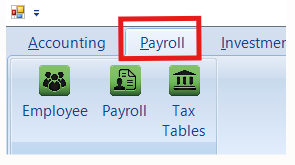
This will temporarily hide the icons, which allows more of the screen to be viewed. To make the icons visible again, double click on the Payroll tab again.
Leave and Benefit (F7) tab
ISSUE: When in an employee record, on the Leave and Benefits (F7) tab, and under the Paid Family Medical Leave section, the Employee and Employer percentage split fields are not fully visible.
SOLUTION: Double click on the Payroll tab.
This will temporarily hide the icons, which allows more of the screen to be viewed. To make the icons visible again, double click on the Payroll tab again.
Payroll Check Information
ISSUE: When entering employee hours in the Payroll Check Information box, the Save and Close buttons are only partially visible (the words identifying which button is which is not visible).
SOLUTION: Save is on the left, Close is on the right. Click on the portion of the button that is visible.
Investments Module
Investments
ISSUE: When you add a deposit or withdrawal while editing an investment, you receive a generic CTAS error message stating, "CTAS is unable to complete this operation.” CTAS then saves the entry but creates a check or receipt number of “0” instead of an IAD (Investment Automatic Deposit) or IAW (Investment Automatic Withdrawal) number.
SOLUTION: Do not add letters or numbers to the CTAS-generated check number (IAD) or receipt number (IAW): doing this will prevent additional deposits or withdrawals from being created for that investment. To fix, remove any letters or numbers from the check or receipt number, returning the created IAD or IAW to its original number: for example, change IAW1a to IAW1 or IAD8b to IAD8.
Reports Module
1099
ISSUE: 1099s might not pull all disbursements if the disbursement includes a program code.
SOLUTION: Remove the program code from disbursements related to the 1099 and then run the 1099. After running the 1099, add back the program code to affected disbursements.
Schedule 2A
ISSUE: Schedule 2A is missing certain capital outlay accounts.
SOLUTION: Use Schedule 2, which is correct.
Administration Module
Unable to Submit State Auditor Data File and Financial Statements
ISSUE: When trying to submit State Auditor Data File and Financial Statements under the Generate and Submit heading, user is not receiving the pop-up box to enter their SAFES credentials and submit files.
SOLUTION: In the CTAS Year-End Reporting instructions, for Steps II and III, use option 2. Link to instructions: https://www.osa.state.mn.us/media/03fpaokp/yearendreportinginstructions.pdf.
Previously-Corrected Issues, by CTAS Version
Only installation and encryption issues were corrected in CTAS 2025 Update 3